
Introduction
Trading now occurs across two primary environments: mobile applications on smartphones and tablets, and desktop platforms installed on laptops or desktop computers. Each environment shapes how traders view markets, place and manage orders, monitor risk, and handle routine tasks. Understanding the differences is not a matter of personal preference alone. The device and platform influence the speed and accuracy of order entry, the depth of information available at a glance, network reliability, and even security posture.
This article defines mobile versus desktop trading, explains how each works in practice, and examines why this distinction exists. The discussion focuses on real-world execution and management rather than strategies or forecasts. The goal is to help readers align tasks with the environment that supports those tasks most effectively.
What Mobile vs Desktop Trading Means
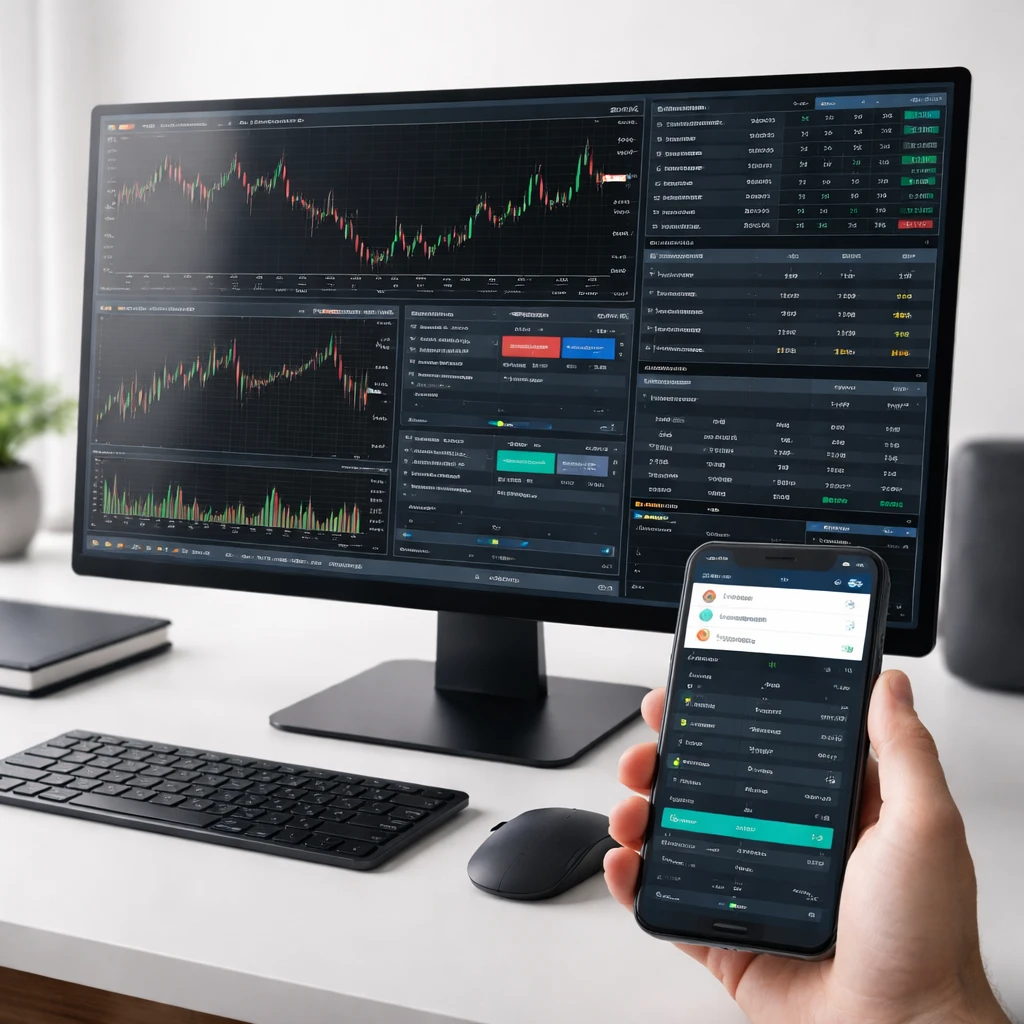
Mobile trading refers to placing, modifying, and monitoring trades through a smartphone or tablet application. The interface is optimized for touch input, limited screen space, and intermittent connectivity. Push notifications and simplified order tickets are common features.
Desktop trading refers to trading through a full platform on a laptop or desktop computer. The interface is designed for keyboard and mouse input, larger displays, and persistent connections. Desktops typically support multi-window layouts, richer analytics modules, and more extensive customization.
The distinction is not only about the device. It concerns the entire workflow: what you can see at once, how quickly you can enter or adjust orders, how the platform handles data, and the kinds of safeguards that can be configured.
Why This Distinction Exists
Mobile and desktop platforms evolved to serve different constraints and opportunities. Mobile hardware and networks prioritize portability and quick interactions. Desktop systems prioritize density of information, customization, and computational flexibility. Brokerage technology reflects these trade-offs. On mobile, the objective is responsive access from anywhere, with clear, simple actions. On desktop, the objective is a comprehensive workspace that supports deeper analysis, complex orders, and multitasking across several market windows.
Market structure also matters. Liquidity changes by time of day and venue, and prices can move quickly around scheduled events. The ability to respond promptly while away from a desk is a practical need for many participants. At the same time, preparing, reviewing documents, and configuring risk tools often benefits from a larger screen and keyboard. Both environments therefore coexist because real trading involves both mobility and depth.
Core Components of Trading Platforms
Although interfaces differ, most platforms share common components:
- Order entry: tickets for market, limit, and stop orders, time-in-force choices, and quantity controls.
- Market data: quotes, depth or level information when provided, and recent trade prints.
- Charting and data visualization: price charts and basic overlays to understand context. Details of analysis are beyond scope here.
- Watchlists and alerts: curated lists of instruments with price or event notifications.
- Account and risk panels: positions, balances, margin use, and realized or unrealized profit and loss.
- Settings and safeguards: confirmations, default order sizes, and security options.
Mobile and desktop platforms expose these components differently. The desktop often shows several components simultaneously. The mobile app often stacks them behind tabs or swipes to preserve clarity on a small screen.
Practical Differences in Daily Use
Several practical dimensions distinguish mobile from desktop:
- Screen density: Desktops can display multiple charts, the order book, and the order ticket side by side. Mobile screens typically show one or two views at a time.
- Input method: Keyboard shortcuts and a mouse support rapid, precise actions on desktop. Mobile touch input favors larger tap targets and simplified flows to limit errors.
- Multitasking: Running several windows, spreadsheets, or terminals is common on desktop. On mobile, switching between apps is possible but less seamless.
- Connectivity: Desktop connections over wired Ethernet or stable Wi‑Fi are generally more consistent. Mobile relies on cellular networks, which vary by location and congestion.
- Notifications: Mobile excels at push alerts, lock-screen updates, and quick glances. Desktop alerts are effective when the platform is in focus but are less visible when away from the screen.
- Security posture: Desktops often use hardware security keys or multi-factor authentication via separate devices. Mobile devices support biometrics and secure enclaves but can be exposed to risks like SIM swap if safeguards are weak.
Order Entry and Modification
Order entry illustrates the contrast clearly. On desktop, traders can configure hotkeys, templates, and dedicated order tickets with granular parameters such as partial fills handling, routing options when available, and conditional triggers. On mobile, the order ticket is usually streamlined to emphasize instrument, side, quantity, price, and time-in-force. Advanced conditions might be available through additional screens, but the flow is designed to minimize taps and potential mistakes.
Consider a common scenario. A trader receives a price alert during a commute. On mobile, the trader opens the app, confirms the instrument, selects order type, defines quantity, and taps submit after reviewing a confirmation screen. The entire process might take several taps, with a final summary to reduce input errors. On desktop, with the platform already running, the trader can drag an order line on a chart or open a full ticket with keyboard shortcuts. The desktop interface may enable a faster workflow when already at the desk. The mobile interface enables timely action away from the desk.
Modification and cancellation tend to be quicker on mobile through swipe gestures or inline buttons beside open orders. Desktop platforms provide more granularity, such as adjusting price levels by dragging order lines or editing fields in a grid. Both approaches are effective when used intentionally, but each suits different contexts.
Monitoring Positions and Risk
Monitoring is an ongoing task that benefits from persistent visibility and timely alerts. The desktop view can show a full positions grid, account summaries, and instrument details at once. This supports comprehensive supervision. Mobile interfaces show core metrics first and tuck details behind successive taps. The benefit is clarity and reduced clutter. The cost is limited simultaneous visibility.
Alerts bridge this gap. Mobile push notifications can signal price thresholds, order fills, or margin status. Desktop alerts can pop up within the platform or the operating system. In either case, the usefulness depends on configuration and the reliability of the device’s connection.
Research, Documentation, and Preparation
Preparation often involves reading company filings, scanning macroeconomic calendars, reviewing broker notices, or checking product specifications. These tasks are more comfortable on a large screen with multiple documents side by side. Copying data into spreadsheets or note-taking tools is faster with a keyboard and mouse. Mobile devices support light review on the go, but extended reading and cross-referencing are less efficient on a small display.
News consumption works in both environments. Many platforms stream headlines and summaries to mobile and desktop. When a deeper article or dataset is required, desktop ergonomics help with careful reading and contextualization.
Reliability, Latency, and Data Integrity
Execution quality is not determined by device alone, but device and network affect the path between the user and the broker. Desktop use on a wired connection often reduces variability in latency and packet loss. Mobile connections depend on distance to cell towers, network congestion, and handoffs between cells, which can introduce jitter. In normal conditions, both environments deliver acceptable responsiveness for most tasks. Under stress or in crowded areas, the mobile connection can slow or momentarily drop.
Data integrity also depends on how the platform handles reconnects, partial data, and clock synchronization. Desktop platforms may cache more data locally and maintain multiple background connections. Mobile apps conserve battery and data by polling at a lower frequency when in the background. These design choices influence how quickly quotes and account data refresh after the app becomes active again.
Security Considerations
Security practices differ slightly by device class, with overlapping fundamentals:
- Authentication: Multi-factor authentication is standard. Desktop users may add hardware keys. Mobile users often rely on biometrics coupled with device-level passcodes.
- Transport security: Both environments use encrypted connections. Public Wi‑Fi introduces risks if the network is misconfigured or malicious. A trusted network reduces exposure.
- Device hygiene: Keeping the operating system updated, using official app stores, and restricting permissions are basic hygiene steps on mobile. Desktop hygiene includes antivirus tools, cautious installation practices, and controlled browser extensions.
- Account recovery risks: Mobile numbers can be targeted for SIM swap attacks. Keeping recovery channels diversified and protected is prudent. Desktop accounts are also vulnerable if email or password managers are compromised.
Security is a shared responsibility between the platform provider and the user. The device choice influences which controls are most convenient and therefore most likely to be used consistently.
Customization and Automation
Desktop platforms tend to offer extensive customization. Common features include detachable panes, multiple monitors, custom layouts, keyboard shortcuts, and occasionally scripting or API access. These tools support building a workspace that matches a specific workflow, such as arranging order books alongside position grids and order history.
Mobile platforms emphasize straightforward, consistent interactions. Customization usually focuses on watchlists, notification thresholds, and simplified layout choices. Some mobile apps offer widgets or quick actions for faster access to frequent tasks. Automation is generally limited to alerts or simple conditional orders, reflecting the need to balance power with clarity on small screens.
Synchronization Across Devices
Modern platforms often sync watchlists, preferences, and even layouts across devices through the provider’s cloud. An order placed on desktop should appear instantly on mobile. Edits made on mobile should reflect on desktop after a refresh. This synchronization allows a hybrid approach where preparation occurs at the desk and monitoring or minor adjustments occur on the phone.
Simultaneous logins deserve attention. Some platforms allow multiple sessions, while others limit concurrent connections. If both desktop and mobile are active, alerts may be duplicated, and actions taken on one device should be confirmed on the other to ensure state consistency.
Costs and Resource Use
While brokerage fees are independent of device class, there are indirect costs and constraints to consider. Mobile data plans may limit real-time streaming or update frequency. Battery consumption increases with continuous data feeds and location services. Desktop platforms consume more memory and CPU, particularly with several modules open, which can affect performance on older machines. External monitors and peripherals add to workstation costs but expand capability.
Accessibility and Ergonomics
Ergonomics influence accuracy and fatigue. Long sessions at a desk benefit from an adjustable chair, external keyboard, and larger fonts. Eye strain can be reduced by appropriate brightness and contrast settings. Mobile ergonomics revolve around brief interactions. Holding a device for extended periods can cause grip fatigue, and glare outdoors reduces screen readability. Accessibility features, such as screen readers, voice control, high-contrast modes, and customizable text sizes, are available on both device classes, though their implementation varies by platform and operating system.
Real-World Scenarios
Scenario 1: Managing an Order While Traveling
A practitioner sets an alert for a specific price level before leaving the office. During a train ride, a push notification arrives. The mobile app opens directly to the instrument. The practitioner reviews the existing open order, adjusts the price field, and confirms the change. The update shows immediately in the order list. Later, upon reaching a desktop workstation, the practitioner verifies the order details, checks the fill history, and exports the day’s activity for records. Mobile provided timeliness, while desktop supported verification and documentation.
Scenario 2: Preparation at the Desk, Monitoring on the Phone
At the start of the week, a user organizes a watchlist, configures alerts for key instruments, and sets default order sizes. This is done on the desktop with multiple windows visible, including an account overview and product specifications. During the week, the phone serves as a monitoring device. Alerts prompt occasional checks, and small order adjustments occur through the mobile interface. The workflow leverages each environment for tasks that suit it best: preparation on desktop, intermittent monitoring on mobile.
Scenario 3: Network Contingency
A temporary internet outage occurs at the office. The desktop platform disconnects. The practitioner switches to the mobile network, opens the app, reviews positions, and, if needed, modifies orders. After the office connection returns, the desktop session is restored. The mobile device served as a contingency channel when the primary connection failed.
Risk Controls and Safeguards Across Devices
Trading platforms provide configurable safeguards that operate independently of device choice. Examples include price collars on order tickets, maximum default order size, confirmations before submission, and alert thresholds for margin or account balance. On desktop, these controls are often surfaced in dedicated settings panels with detailed explanations. On mobile, they may be presented as simple toggles or preselected defaults with contextual notes. Whether on mobile or desktop, consistent configuration reduces avoidable errors.
Learning Curve and Usability
Desktop platforms typically have a steeper learning curve due to the breadth of features and the flexibility of layout. Once learned, efficiency can be high because many actions can be executed via keyboard shortcuts and tailored panels. Mobile apps are easier to learn but compress information. This encourages deliberate, shorter interactions. The difference influences how users distribute tasks across devices and plan their sessions.
Limitations to Recognize
Each environment has structural limitations:
- Mobile limitations: small screen, touch precision limits, dependence on mobile data, background refresh constraints, and potential distractions from other apps.
- Desktop limitations: reduced mobility, reliance on a fixed connection, and potentially higher complexity that can obscure simple tasks behind menus and settings.
Recognizing these constraints helps assign tasks to the environment where they are easiest to execute correctly.
Emerging Trends
Several trends are changing the balance between mobile and desktop. Mobile device processors and graphics capabilities continue to improve, which supports richer visualizations and faster app navigation. Progressive web technologies allow browser-based platforms to behave more like native desktop applications, lowering installation friction. Cloud synchronization is becoming more granular, enabling near real-time state sharing. Regulators and platform providers are also examining user interface design to ensure clarity in order submission flows, including how defaults, confirmations, and prompts are presented on small screens.
Choosing a Workflow that Fits the Tasks
Device choice is best matched to tasks rather than identity as a mobile or desktop trader. Preparation, documentation, and complex multi-window supervision align naturally with desktop. Timely checks, alerts, and small adjustments align naturally with mobile. Many participants operate a hybrid workflow, relying on synchronization between devices to maintain continuity. The decisive factor is the quality of execution and the reduction of operational risk, not loyalty to one environment.
Transitioning Between Devices Smoothly
Coordinating mobile and desktop use benefits from a few practical habits. Consistent naming of watchlists and settings across devices makes quick checks more reliable. Reviewing the order confirmation screen, regardless of device, helps avoid accidental submissions. Verifying that alerts and notifications are enabled for both environments reduces the chance of missing an important update. Periodically signing in on each device ensures session health, and reading platform notices keeps expectations aligned with any changes to features or layouts.
A Comparative View at a Glance
It is useful to summarize the contrasting strengths:
- Mobile: best for portability, push notifications, and quick adjustments while away from a workstation.
- Desktop: best for dense information display, extensive customization, and simultaneous supervision of multiple components.
These strengths are complementary. When integrated thoughtfully, they cover a wider range of real-world situations than either environment can cover alone.
Conclusion
Mobile and desktop trading are two expressions of the same underlying function, yet they differ in ergonomics, reliability, and depth. Real-world execution involves both fast, context-limited decisions and deliberate, context-rich reviews. The most robust practice is to understand how each environment shapes attention and action, then align tasks accordingly. Doing so improves consistency, reduces operational friction, and supports clear record-keeping across market conditions.
Key Takeaways
- Mobile trading emphasizes portability, alerts, and quick order adjustments, while desktop trading emphasizes information density and customization.
- Order entry, modification, and monitoring are shaped by input method, screen size, and the platform’s design choices on each device.
- Connectivity and security differ across environments, with desktops favoring stable networks and mobiles excelling at notifications but relying on variable cellular coverage.
- Synchronization allows a hybrid workflow where preparation occurs on desktop and oversight or small changes occur on mobile.
- Assign tasks to the device environment that reduces operational risk and supports accuracy rather than favoring one device in all situations.